Install Anaconda and Jupyter Notebook on Arch Linux
This guide will show you how to install Anaconda and Jupyter Notebook for Arch Linux System
1.1 Installation
Anaconda can be installed using these two ways
Using AUR
Use your favorite AUR package manager and install python-conda package. This example I will use `yay
1
yay -S python-conda
Using the official install script
Download from Anaconda’s official download page
The website will automatically hands you the right version from your browser’s information
Make the script executable and run the script
1
2
chmod u+x ./<install-script>
./<install-script>
2.1 Usage
It is recommended to install new packages in a new environment instead of the base environment. To avoid conda automatically activating the base environment, edit ~/.condarc:
1
auto_activate_base: false
2.2 Set default packages
Add create_default_packages section in ~/.condarc. For example:
1
2
3
4
5
6
7
8
9
...
create_default_packages:
  - pip
  - ipython
  - numpy
  - scipy
  - libgcc-ng
  - mpich
  - rust
2.3 Create an environment
To crate a new environment myenv with default packages specified in previous section, run:
1
conda create --name myenv
To crate a new environment without default packages, run:
1
conda create --no-default-packages --name myenv
To create a environment with specified python version and packages, run:
1
conda create --name myenv python=3.9 numpy=1.23.5 astropy
To activate the environment:
1
conda activate myenv
3.1 Install Jupyter Notebook
Activate your desired enviroment through conda, then run the install command:
1
conda install jupyter
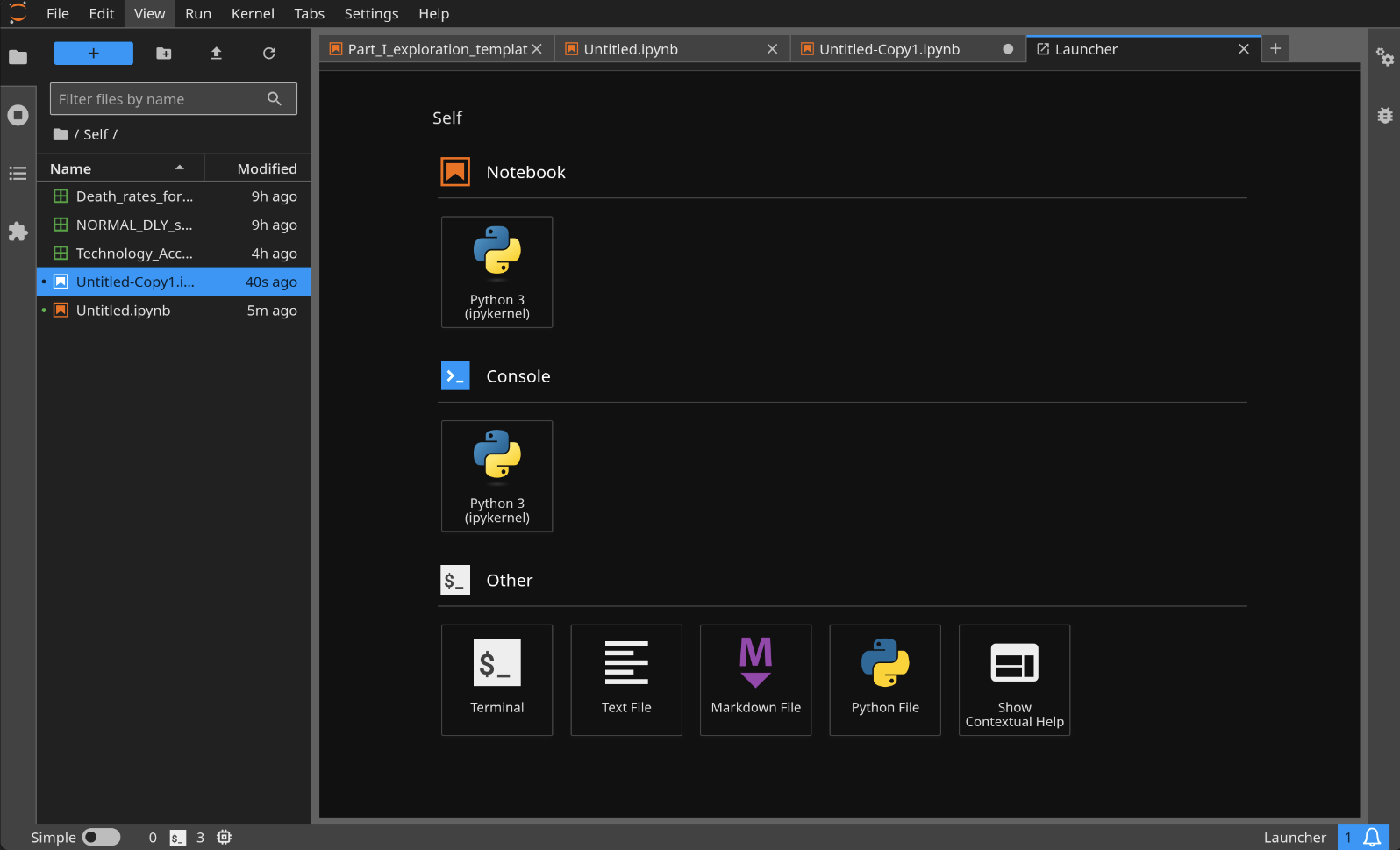
After that you can run the jupyter build to init your jupyter notebook enviroment in your current folder of the terminal. Then you can run jupyter lab or jupyter notebook.